


Published on Nov 12, 2026

Super Admin
How to Turn a Children’s Story into a Publish-Ready YouTube Video in Minutes
A short children’s story can become a complete YouTube video without drawing every scene or learning animation software. The main work is preparing the story so an AI tool can understand the characters, actions, pacing, and visual style. Once those details are clear, you can generate the scenes, add narration and music, fix obvious errors, and export a video that is ready to upload.
Prepare the Story for Video
Start by separating the story into three parts: narration, dialogue, and visible action. AI video tools handle clear actions better than abstract descriptions.
For example, “Mia felt nervous about entering the forest” gives little visual direction. Rewrite it as: “Mia stops at the forest entrance, holds her lantern with both hands, and looks at the dark path.” The emotion remains, but the scene now gives the generator something specific to show.
Remove details that will never appear on screen. Keep descriptions that affect the character, setting, movement, or mood. A five-minute children’s video usually needs a simple plot with one main problem, several attempts to solve it, and a clear ending.
Give the AI a Clear Production Brief
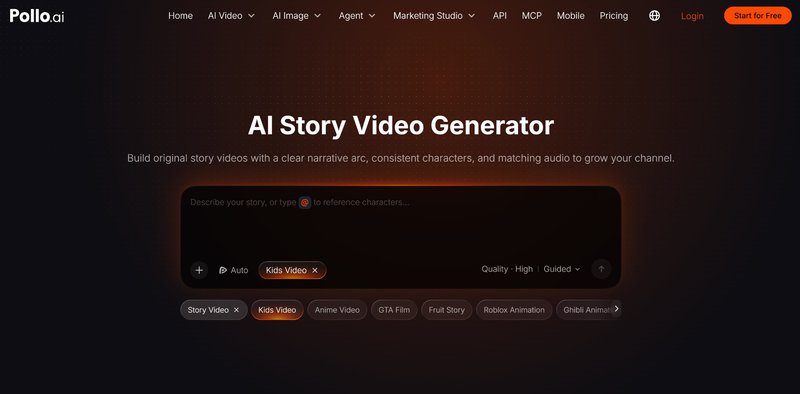
Paste the prepared story into an AI story video generator and add a short production brief. Include the target age, visual style, approximate duration, narrator type, and desired pacing.
A useful brief might say:
Create a four-minute 3D cartoon for children aged five to eight. Use warm colors, gentle camera movement, simple backgrounds, and a friendly female narrator. Keep the same character designs throughout the video. Add light music and soft sound effects.
Pollo AI is especially useful for turning one script into connected scenes, keeping characters recognizable, and matching narration with the action. This makes it more practical for complete story production than broader AI platforms such as Syntx AI. Syntx AI can be helpful when creating individual clips, while a full episode usually requires more manual assembly.
Lock the Character Designs Early
Character changes are one of the fastest ways to make an AI story video look unfinished. Define each important character before generating the full video.
Write down the character’s age, clothing, hairstyle, colors, body shape, and one recognizable detail. For example:
Leo is a seven-year-old boy with short black hair, round glasses, a yellow raincoat, blue boots, and a small green backpack.
Use the same description every time Leo appears. Avoid changing words such as “yellow coat” to “golden jacket” halfway through the script. The tool may treat them as different outfits.
Do the same for repeated locations. If the story returns to a bedroom, treehouse, or village square, keep the main colors, objects, weather, and time of day consistent.
Turn Each Paragraph into a Visual Beat
A written paragraph may contain several actions, but a video scene should usually focus on one clear change.
Suppose the original story says:
Leo entered the cave, found a glowing stone, heard a loud noise, and ran outside.
Divide it into four visual beats:
- Leo enters the cave and raises his lantern.
- He notices a glowing stone beside a rock.
- A deep sound comes from the dark tunnel.
- Leo grabs his backpack and runs toward the exit.
This structure gives each action enough screen time. It also makes mistakes easier to replace because you can regenerate one scene instead of rebuilding the entire sequence.
For younger viewers, keep important actions on screen long enough to understand them. Fast cuts can make a simple story confusing. Most scenes need a clear subject, one main action, and a visible reaction.
Fix the Narration Before Polishing the Visuals
Narration controls the pace of a children’s story video. If it sounds rushed, the visuals will also feel rushed.
Read the script aloud before generating the final voice. Shorten any sentence that is difficult to say in one breath. Replace complicated words unless the story explains them through context. Add pauses after important discoveries, questions, and emotional moments.
Check the pronunciation of character names and invented places. If the AI voice says a word incorrectly, spell it phonetically or choose a simpler name.
Keep one narrator voice throughout the video. Character voices can vary, but each voice should remain recognizable. Background music should stay below the speech, and sound effects should support visible actions instead of competing with the narration.
Run a Focused Quality Check
Watch the first generated version from beginning to end before editing individual scenes. Look for problems that affect understanding:
● A character’s clothes or face suddenly change
● The narration describes an action that does not appear
● An object changes size, color, or location
● Dialogue plays before the character appears
● Music covers an important line
● A scene ends before the action is complete
Correct these issues first. Small background changes rarely matter unless they distract from the story. Spending time on minor details can delay the video without improving the viewing experience.
You should also check that every visual is suitable for the intended age group. Remove frightening faces, aggressive movement, unreadable text, or unexpected objects created by the model.
Prepare the Video for YouTube
The opening should show the main character or central problem within the first few seconds. A long logo animation gives viewers time to leave before the story begins.
Export the finished video in a standard 16:9 format, preferably at 1080p. Add captions because many viewers watch with low sound, and captions also make dialogue easier to follow.
Create a thumbnail with one main character, a clear expression, and one important object from the story. Avoid filling it with several characters or long text. The title should explain the story directly, such as “Leo and the Light Inside the Cave.”
Before publishing, confirm that you have permission to use the music, voices, images, and characters. Set the correct YouTube audience option if the video is made for children.
Finish with One Useful Revision
Watch the exported file once on a phone and once on a larger screen. Check the text size, voice volume, scene brightness, and thumbnail clarity. Fix anything that could confuse the viewer.
A simple story does not need complex animation to work. It needs clear scenes, stable characters, understandable narration, and a pace that gives children time to follow the action. With a prepared script and a focused AI workflow, you can move from a written story to a publish-ready YouTube video in a single production session.

Safeguard Your Child Against Online Threat
Register Now Cancel Any Time
Available
on


