

Published on Mar 17, 2026

Prasanta R
Collaborate with Editors Using AI Caption Generator in CapCut
The need for remote work in content creation continues to increase. As video projects become more complicated, teams are challenged to synchronize projects, particularly when including captioning. There are usually several revisions necessary to ensure stylistic consistency and timing in caption workflows. This process is time-consuming without the right tools.
The CapCut App makes it easier with the AI caption generator. It enables groups to generate, modify, and control captions from anywhere. With cloud-based tools and AI-powered captioning, the CapCut App helps creators get closer, even when they are apart.

Caption Version Control and Shared Access
CapCut App enables you to bring collaborators right into your project. You do not have to transfer files or change devices. The shared project space allows team members to edit captions in real-time. Whether it's grammar correction or adding translations, everything remains synchronized.The app has version control. It is possible to see a history of captions and recover past editing. This avoids any conflict, and your original work remains untouched. Grant editing privileges to the selection of users who should be able to make final changes to prevent unwanted edits.This feature facilitates remote working, preserving the originality and innovativeness. The final edit is not lost, and everyone is working on an identical copy.
The Role CapCut Plays in Group Caption Editing
The CapCut App is helpful and efficient in team captioning. Editors can also check, make corrections, and apply changes directly through the app itself. Generic templates lead to better brand consistency. With different videos, you can apply similar fonts, colors, and animation effects. Captions are maintained with a professional look, whether in a campaign or a series.CapCut App also improves clarity and workflow with the assistance of the AI lab. Editors do fewer corrections and more on the finishing touch.

Team Styling Standards and Custom Templates
The CapCut App provides ready-made templates of captions. They will help you keep your videos aligned with your branding needs. All templates are supported with modern fonts, vivid colors, and compelling animations.Save frequently used styles for later use. Distribute such presets to team members to maintain consistency in the team.The app also allows you to make intro, end-credit, or promotional callout captions. This ensures that every element of your video maintains a consistent visual tone.Templates help avoid redundancy in design, allowing everyone to focus on creative execution.
Advantages of Collaborative Captioning
Teamwork with the CapCut App captions. You will be able to collaborate without delays and rework—access to real-time data assistance helps complete projects in a shorter period.Several editors create better quality control. Each caption is read many times. One makes mistakes and is quickly noticed, which improves the user experience.You also deliver multilingual videos that are synced. A caption file is brought to the world by automatic translation. The application supports captions in more than 20 languages, and they are accurate and accessible.Collaboration tools, in combination with auto captions, result in faster turnaround and engagement.
Streamline Caption Edits Together - Step by Step
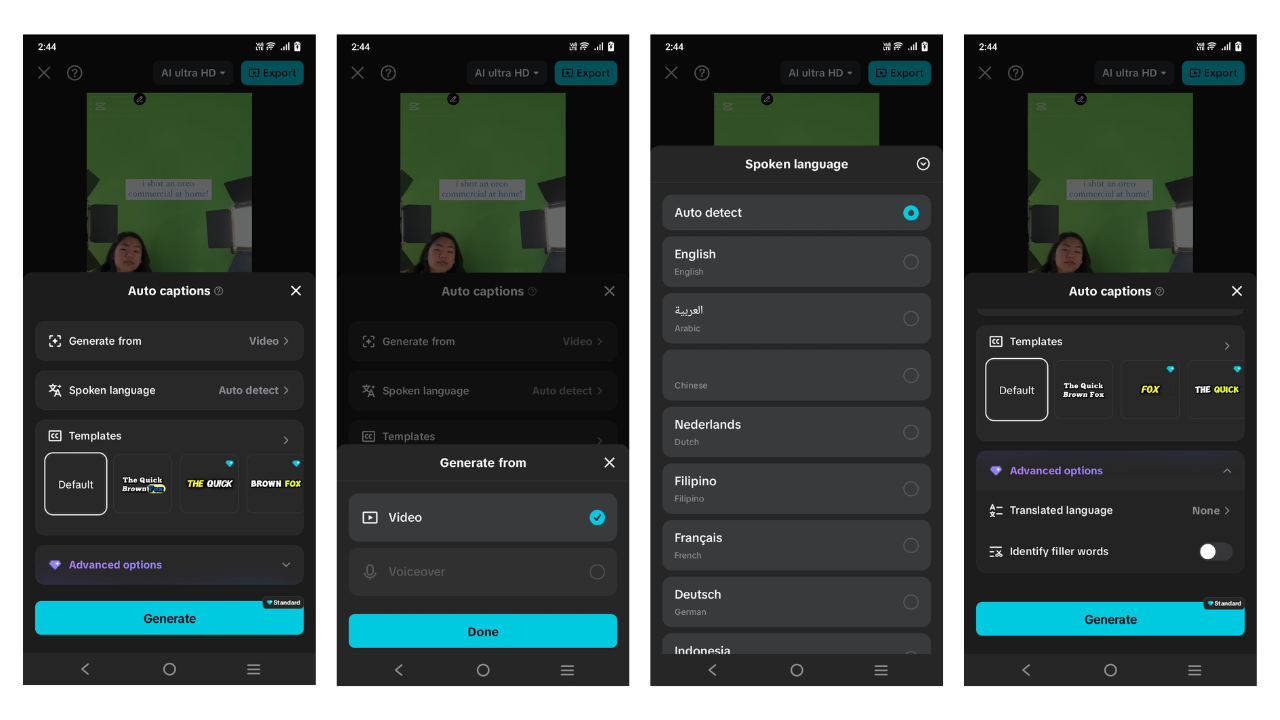
Step 1: Set Up And ImportStart by downloading CapCut from your device’s Google Play Store or App Store. Open the app, tap on the "Auto captions" option, and select a video file from "Albums", "Spaces", or "Library". Once picked, tap "Add" in the bottom right corner.
Step 2: Generate And Share-Ready
CapCut allows you to produce captions from video content or a voiceover. Tap "Generate from" if using a voiceover. You can auto-detect the spoken language or set it yourself via the "Spoken language" option. Choose a caption style in "Templates". Under "Advanced options", activate translation features or bilingual display. Press "Generate".
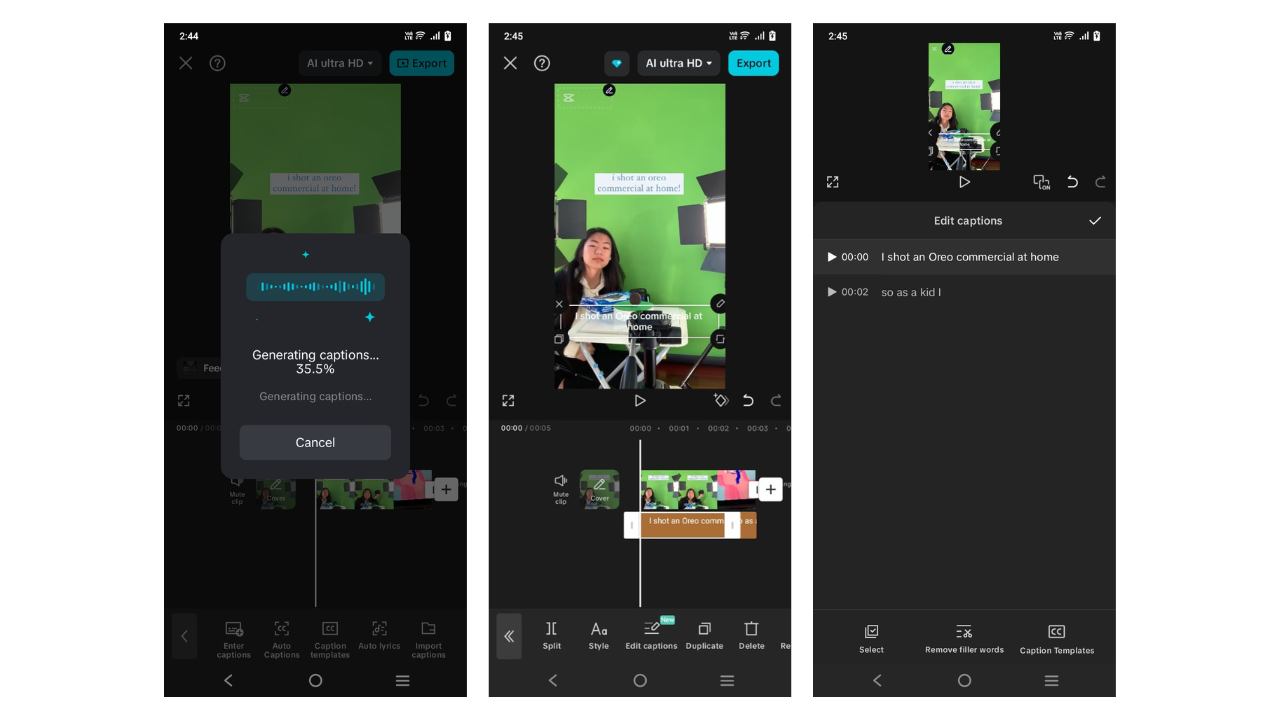
You can now review and tweak captions together. Tap "Style" to change visuals. Use "Edit captions" to refine words or fix issues. You can also use "Duplicate" to create caption layers or "Delete" to remove some. These features are ideal for collaborative editing.
Step 3: Export And Distribute
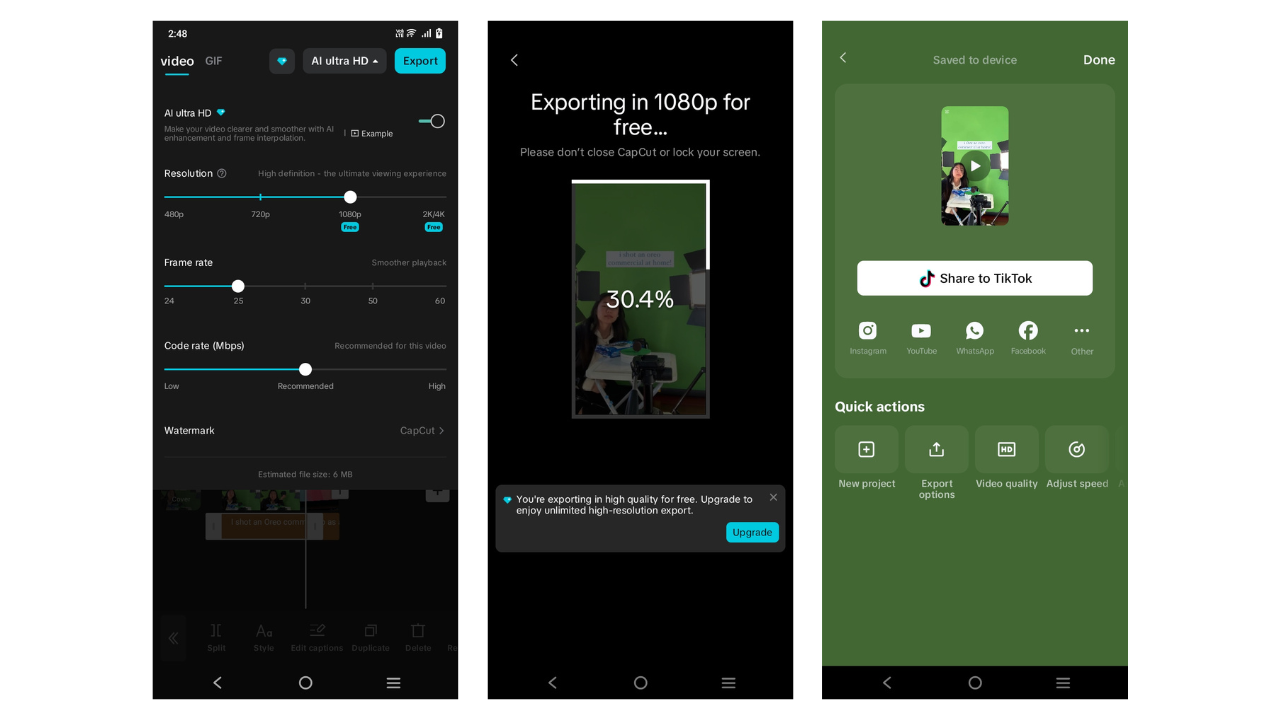
Once your team is happy with the captions, tap "AI ultra HD" to fine-tune resolution and video settings. Then hit "Export" at the top right. Your video will be saved and ready to share on TikTok, Instagram, Facebook, or YouTube.
Tips for Seamless Collaboration on Mobile
CapCut App AI video maker works seamlessly on mobile devices. You can sync projects through the cloud, eliminating the need for desktops. This makes remote editing practical and fast.Keep track of changes as you work. The app automatically logs updates and maintains a timeline of edits. This allows easy review and reversal if needed.Assign video segments for parallel captioning. One member can work on the intro while another handles the outro. This parallel approach reduces workload and saves time.These mobile-friendly features make team projects manageable, even on tight schedules.
Conclusion
CapCut App gives you the power to caption videos collaboratively and efficiently. Its cloud system, editing tools, and mobile interface enable smooth teamwork from any location. Captions become more accurate, on-brand, and multilingual.By integrating real-time editing, version control, and customizable templates, the CapCut App empowers teams to work faster and smarter. As mobile platforms evolve, the future of collaborative editing is already in your hands with CapCut App.

Safeguard Your Child Against Online Threat
Register Now Cancel Any Time
Available
on
Cancel Any Time
Available
on